Tutorial · 3 steps · about 5 minutes
Add a quiz to a lesson
By Gill · builder of Chapters LMS · Updated September 2026
A quiz turns “I watched it” into “I got it”. Every Chapters lesson can carry one: multiple-choice questions, a passing score, a cap on attempts, and, if you want, a rule that the student must pass before the lesson counts as complete. Building one takes a few minutes; importing one from a spreadsheet takes less.
What you need
- A course with the lesson you want to test. The quiz is shown right after the lesson content.
- Three to five questions per lesson is plenty. Students skip long quizzes.
Step 1: Open the quiz builder from the lesson
On the course's Curriculum step, every lesson row has a Quiz button next to Edit. Press it to open the builder for that lesson.
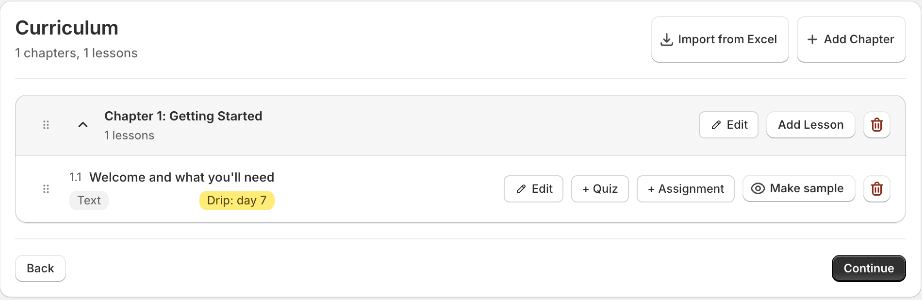
Step 2: Set the rules and write the questions
Give the quiz an optional title, a Passing Score (70% is the default) and Max Attempts; leave attempts empty for unlimited. Then press Add Question: type the question, fill in the answer options and click the radio button next to the correct one. Repeat, then Save Quiz.
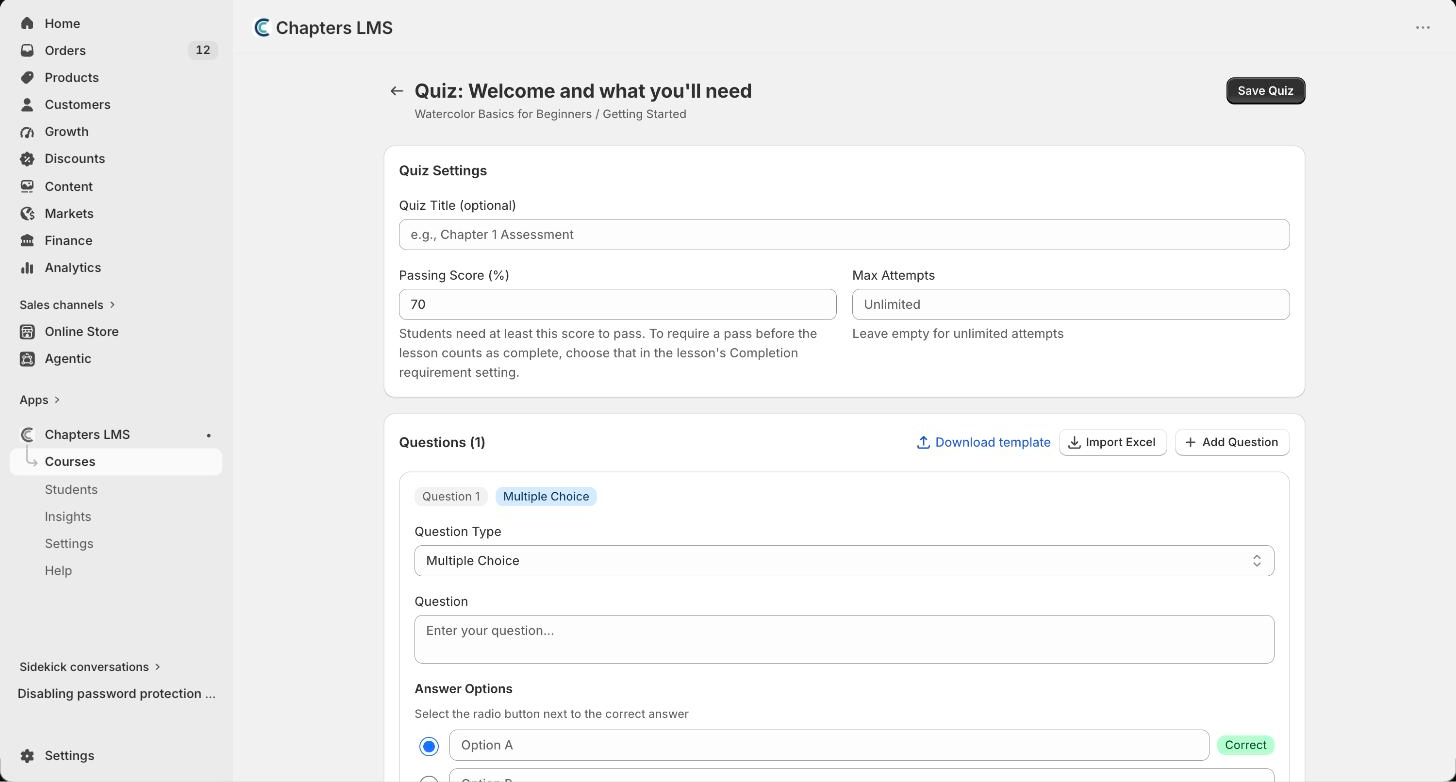
Have the questions in a spreadsheet already? Download template, fill it in, Import Excel. Chapters creates every question in one go.
Step 3: Decide whether a pass is required
By default the quiz is optional: the student can mark the lesson complete without it. To make it count, open the lesson editor and set Students complete this lesson by to passing the quiz. With drip or sequential release on, that gate also holds the next lesson until they pass.

Where the results show up
Students see their score and the correct answers straight after submitting, and can retry up to the attempt limit. You see scores per student under Students → Progress, and the course's Insights page shows which questions most people miss, which is usually the lesson that needs a better explanation.
If something's not right
Students can skip the quiz+
That's the default. Set the completion requirement in Step 3 to require a pass.
Can I use true/false or short answer?+
Write a two-option multiple-choice question for true/false. Free-text answers belong in an Assignment, which you grade yourself.
Someone hit the attempt limit+
Raise Max Attempts on the quiz, or clear it for unlimited. The change applies immediately.
Can one quiz cover a whole chapter?+
Put it on the chapter's last lesson. For a graded final across the whole course, use a standalone exam instead.
Next
Reward the pass: award a certificate when the course is completed. Stuck? Email chapters@pixipace.com and I'll look at your store.