Tutorial · 3 steps · about 5 minutes
Award certificates automatically
By Gill · builder of Chapters LMS · Updated September 2026
A certificate is the one thing students screenshot and share, which makes it the cheapest marketing you'll ever run. Chapters issues one automatically when a course is completed: a PDF with your logo, the student's name, the course title, the date, and a public verification page. You set up the signature once; everything else is automatic.
What you need
- Your logo and brand colours already set under Settings → Branding; the certificate uses them.
- A name and title to sign with, e.g. Gill, Lead Instructor.
Step 1: Add the signer and a signature
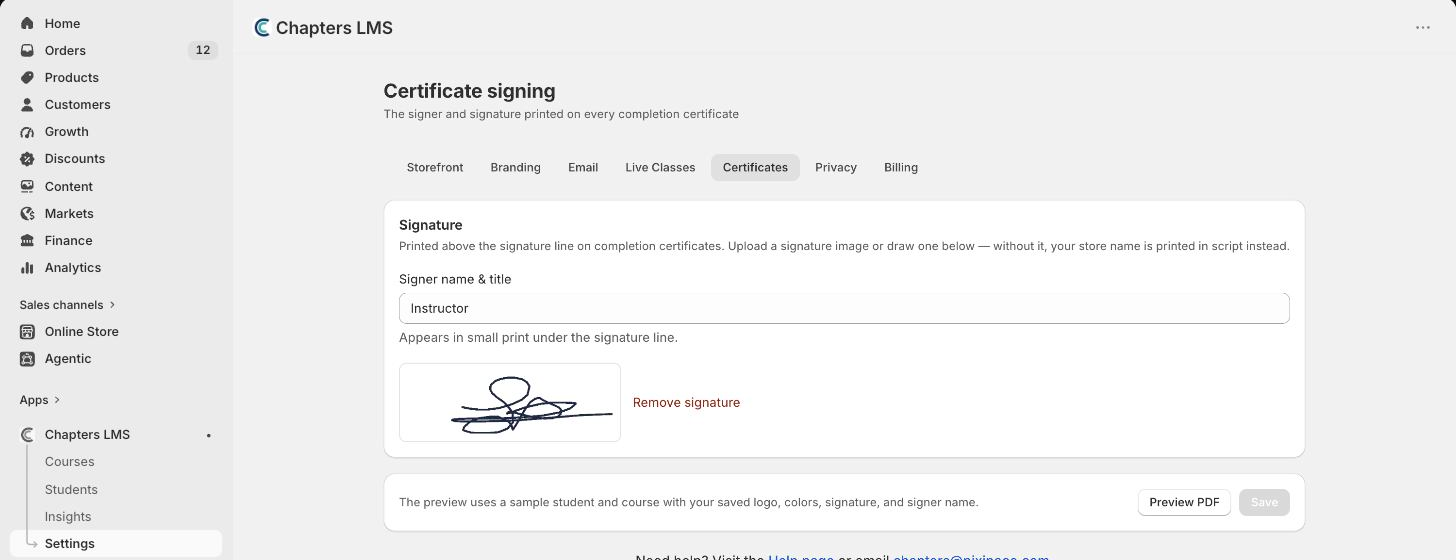
Go to Settings → Certificates. Type the Signer name & title, then either upload a signature image or draw one with your mouse or trackpad. Save. Without a signature, Chapters prints your store name in script instead, so nothing breaks if you skip this.
Step 2: Preview the PDF
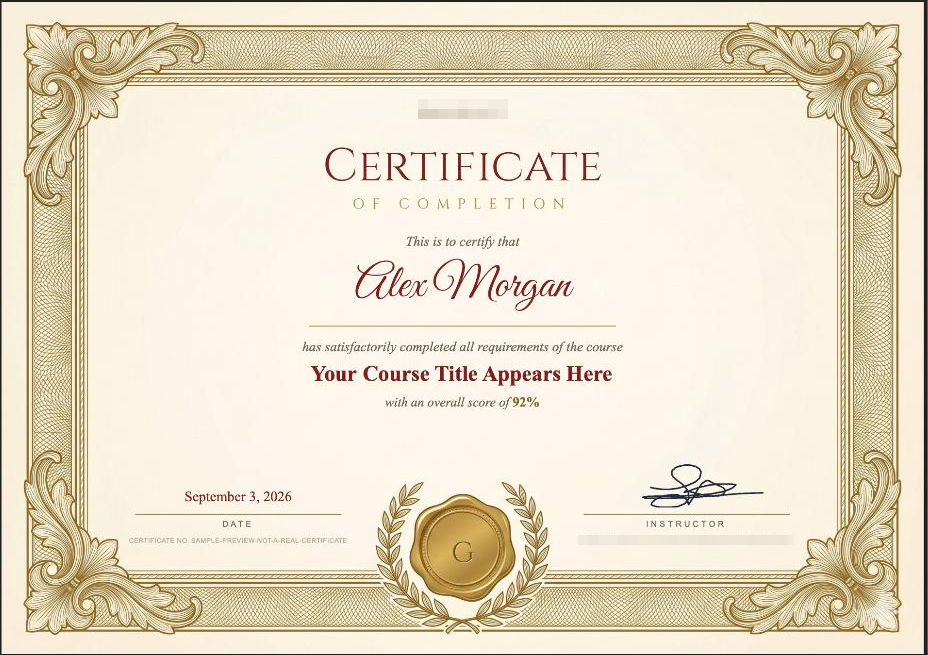
Press Preview PDF. Chapters renders a sample certificate with a placeholder student and course so you can check the logo, colours, signature and wording before a real one goes out.
Every course awards a certificate by default. To change that for one course, open the course's Settings step and scroll to the Completion certificate card at the bottom. Untick Award a certificate of completion to switch it off, or set a Certificate price to sell the certificate as an add-on after the course.
Step 3: Watch them arrive
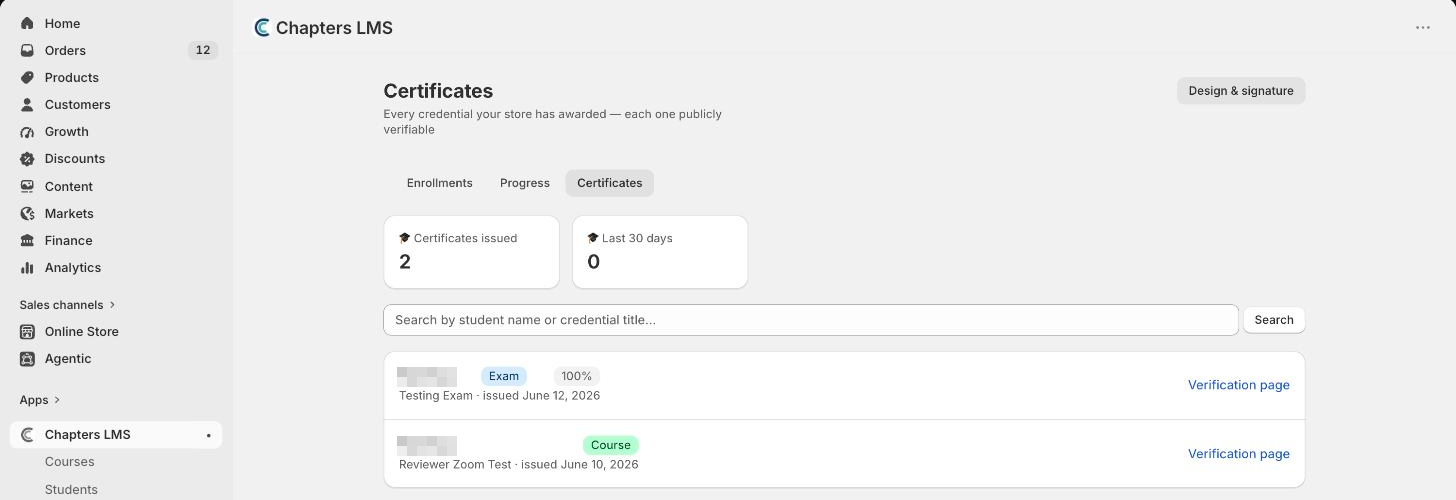
When a student completes the last lesson, the completion email goes out with a link to claim the certificate, and the PDF appears in their portal. You'll find every certificate your store has issued under Students → Certificates, each with a public verification page an employer can open.
What counts as completed
Every lesson marked complete. If a lesson requires a quiz pass, that pass is part of it, so a certificate can't be earned by clicking through. Refund a course order and Chapters revokes access; the certificate's verification page keeps working, because the completion happened.
If something's not right
The certificate shows my store name instead of a signature+
You haven't saved a signature yet. Draw or upload one in Step 1; certificates issued after that use it.
Can I change the design?+
The layout is fixed; the logo, colours, signer and signature are yours. Different wording or a second layout isn't available today; tell me what you need and I'll look at it.
A student says they never got it+
Check Students → Progress for an unfinished lesson; the certificate needs every lesson complete. If all are done, the completion email has the claim link; you can resend it from the student's page.
Can I sell certificates for standalone exams?+
Yes. Exams have their own certificate with the score printed on it; see standalone exams.
Next
Give the certificate something to reward: add a quiz and require a pass. Stuck? Email chapters@pixipace.com and I'll look at your store.