Tutorial · 3 steps · about 5 minutes
Release lessons on a schedule
By Gill · builder of Chapters LMS · Updated September 2026
Dripping content keeps students from binge-skimming a course in one evening and never coming back. In Chapters it's a switch on the course plus a rule on each lesson: unlock 7 days after they enrol, or unlock on 1 October. Students see the locked lessons with their unlock date, and get an email the moment one opens.
What you need
- A course with at least two lessons. Dripping a one-lesson course just delays the start.
- A decision on the rhythm: most cohort-style courses release one chapter a week.
Step 1: Turn on scheduling for the course
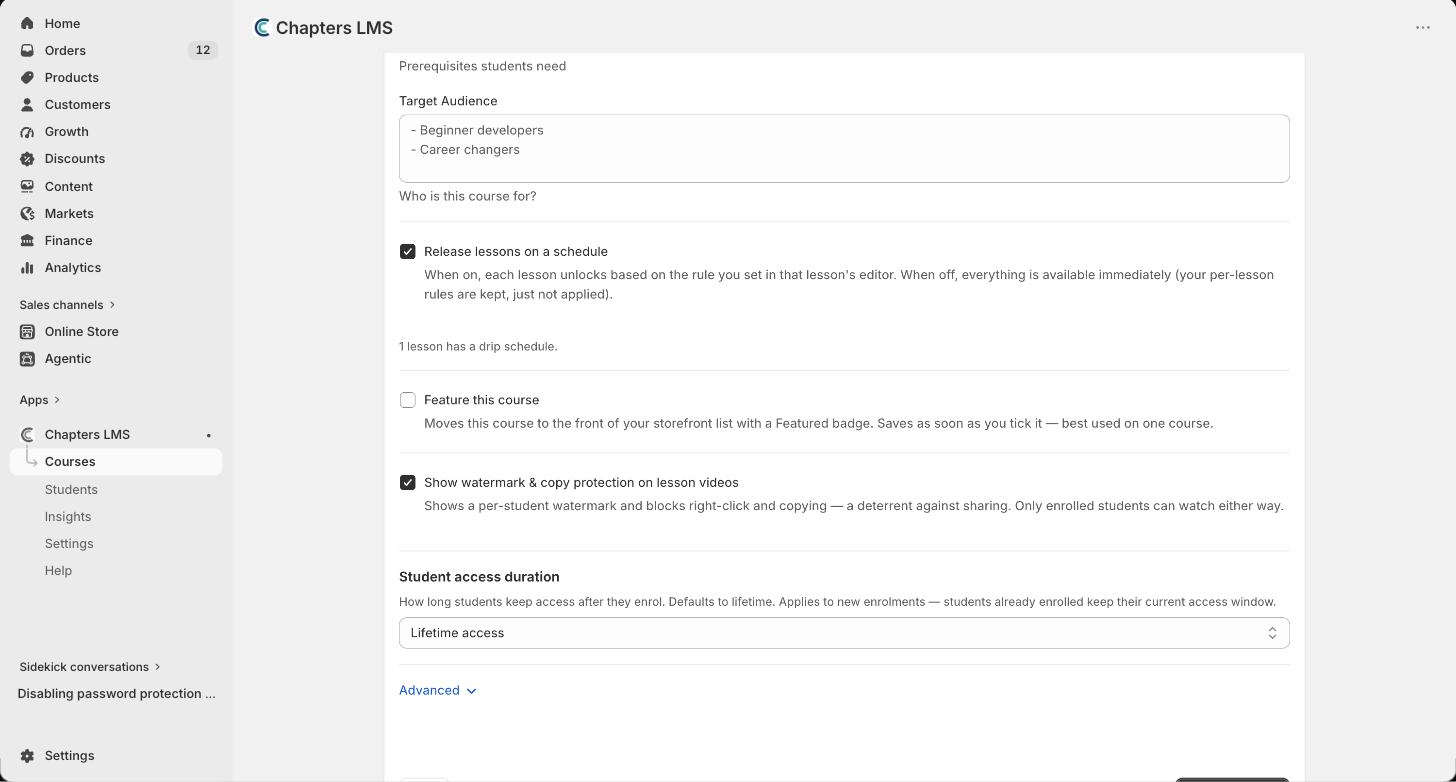
Open the course, go to the Settings step and tick Release lessons on a schedule. It saves on its own. Nothing is locked yet: until a lesson has its own rule, it stays available immediately.
Step 2: Set the rule on each lesson
Back on the Curriculum step, press Edit on a lesson and scroll to Drip Settings. Choose a Drip Type: Days after enrollment for evergreen courses (7 = one week after the student joins) or Specific date for a cohort that starts together. Save the lesson and repeat for the others.
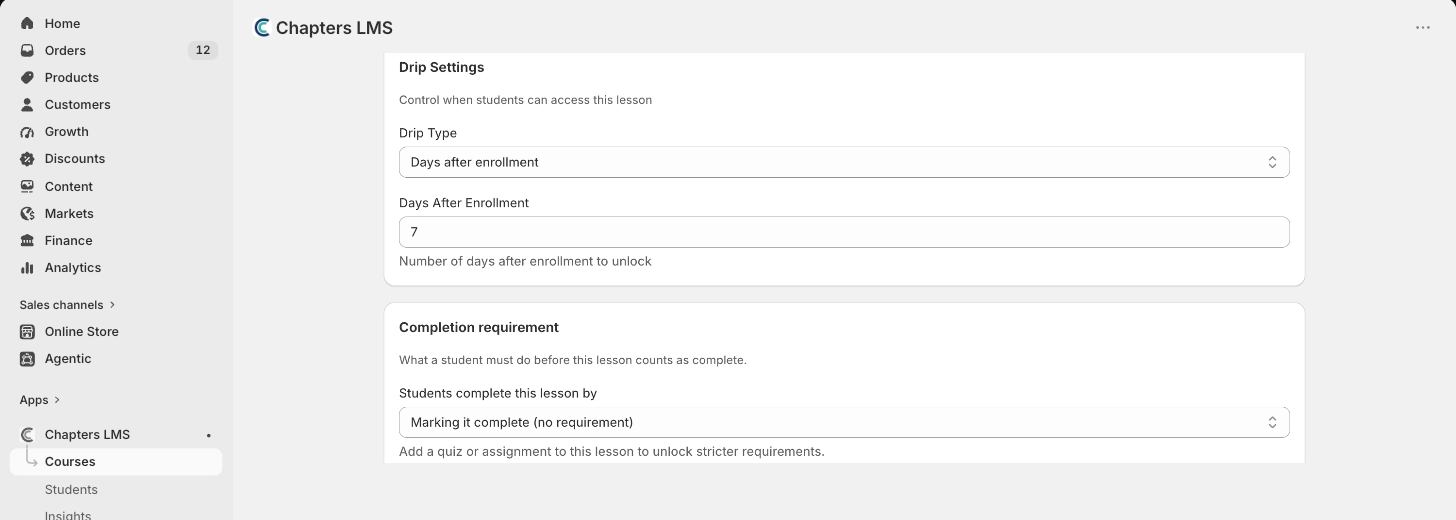
A handy pattern: leave the first chapter open, then release each following chapter 7, 14 and 21 days after enrollment. Students get a taste on day one and a reason to come back every week.
Step 3: Let the email do the reminding
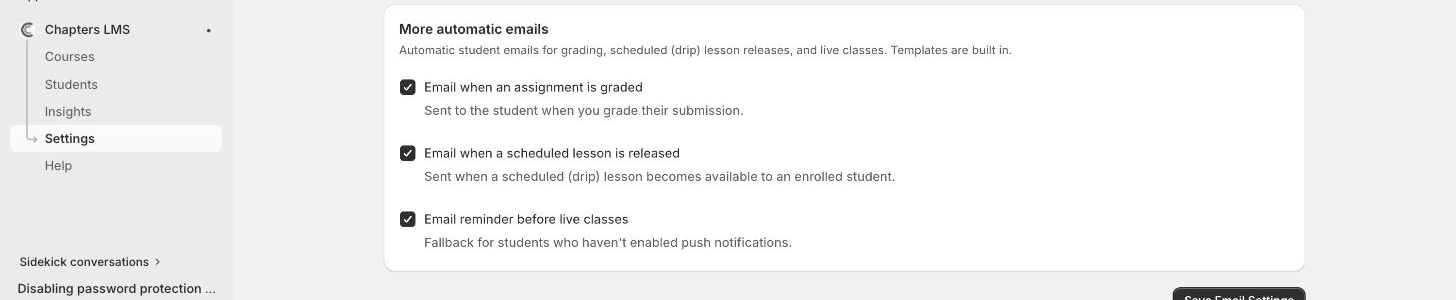
In Settings → Email, under More automatic emails, keep Email when a scheduled lesson is released ticked. Each student gets a short note, with a link, when a lesson unlocks for them. Nothing to write; the template is built in.
What students see
Locked lessons stay in the curriculum, greyed out with their unlock date, so the student can see the whole path. Lesson videos are never sent to the browser before the unlock time, so sharing a link doesn't get around the schedule. When the date arrives the lesson simply opens, and the email goes out.
If something's not right
A lesson I scheduled is still open+
Check the course switch in Step 1. Per-lesson rules only apply while Release lessons on a schedule is on for that course.
Existing students got everything at once+
Rules apply from each student's enrollment date. Someone who enrolled 30 days ago already passed a 7-day rule. Use a specific date instead if you need everyone to wait for the same day.
Can I preview the locked view?+
Yes: enrol a test email through Students → Add students and sign in to your storefront with it.
Does dripping work with a fixed-length access window?+
Yes, but check the maths: a 30-day access window with a lesson that unlocks on day 28 gives students two days for that lesson.
Next
Pair the schedule with a check on understanding: add a quiz to a lesson, and require a pass before the next one counts as complete. Stuck? Email chapters@pixipace.com and I'll look at your store.