Tutorial · 3 steps · about 3 minutes
Enroll a student without a purchase
By Gill · builder of Chapters LMS · Updated September 2026
Most students arrive through checkout. The rest arrive through you: a friend you promised free access, a staff member who needs to review the material, a customer who paid you by bank transfer, or someone whose order went wrong. Chapters lets you enrol any email in any course in about thirty seconds, no order needed.
What you need
- The student's email address. It doesn't have to belong to an existing customer account.
- A published course to put them in.
Step 1: Open Students and press Add students
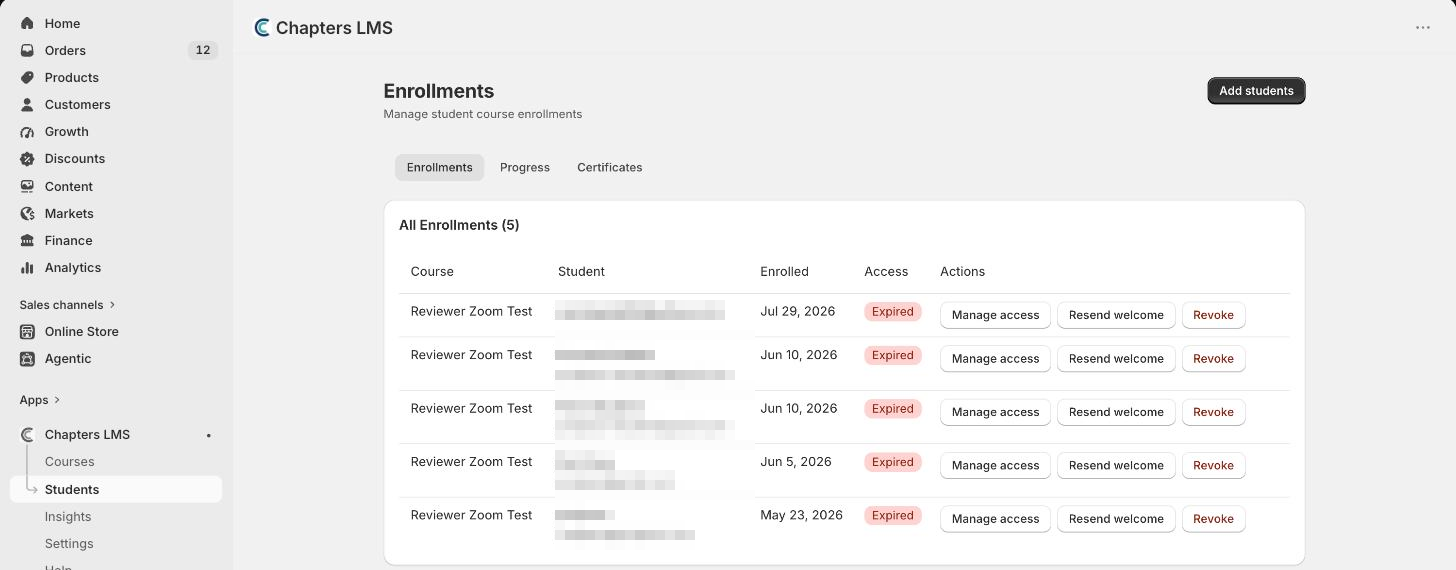
In Chapters go to Students. The Enrollments tab lists everyone with access, their course, when they enrolled and whether access is active or expired. Press Add students in the top right.
Step 2: Paste the emails, pick the course, set access
In the dialog, enter one or more email addresses (one per line), choose the course, and set Access: lifetime, or a number of days from today. Press Add. The same button sits on every course page, pre-filled with that course.
Step 3: What happens next
If the email already has a store account, the student is enrolled immediately and gets the welcome email. If not, the email sits under Waiting for first sign-in; the moment that address signs in to your store, the enrollment activates and the welcome email goes out. Nothing for you to chase.
When to use it
- Staff and collaborators who need to see the course as a student.
- Paid elsewhere: an invoice, a bank transfer, an in-person sale.
- Gifts and prizes: a giveaway winner, a thank-you to a loyal customer.
- Fixing an order: someone bought with the wrong email and can't get in. Enrol the right address, then revoke the wrong one.
- Bulk cohorts: paste a whole class list with an access window that matches the term.
If something's not right
Does a manual enrollment create an order?+
No. Nothing appears in Shopify orders, no email is charged, and no commission applies. It's purely access.
Can I set an end date?+
Yes: choose a number of days in the Access field. You can extend or shorten it later with Manage access on the row.
How do I remove someone?+
Revoke on their row. Their progress is kept, so re-enrolling them later picks up where they left off.
The student says they can't see the course+
They're signed in with a different email. Ask which one they use on your store, enrol that one, and revoke the other.
Next
Manually enrolled students use the same doors as everyone else: make sure the My Courses button is on your storefront. Stuck? Email chapters@pixipace.com and I'll look at your store.