Tutorial · 3 steps · about 5 minutes
Give students a way back into their courses
By Gill · builder of Chapters LMS · Updated September 2026
Buying a course is the easy part. The question students ask a week later is “where do I log in?” Chapters answers it in three places: a My Courses button anywhere in your theme, a Course Access Card on every course page, and a My Learning page inside their normal Shopify account. Each takes about a minute.
What you need
- Chapters installed, with at least one published course.
- Shopify's modern customer accounts (Settings → Customer accounts). Legacy accounts still get the button and the card, but not My Learning.
Step 1: Add the My Courses button to your header
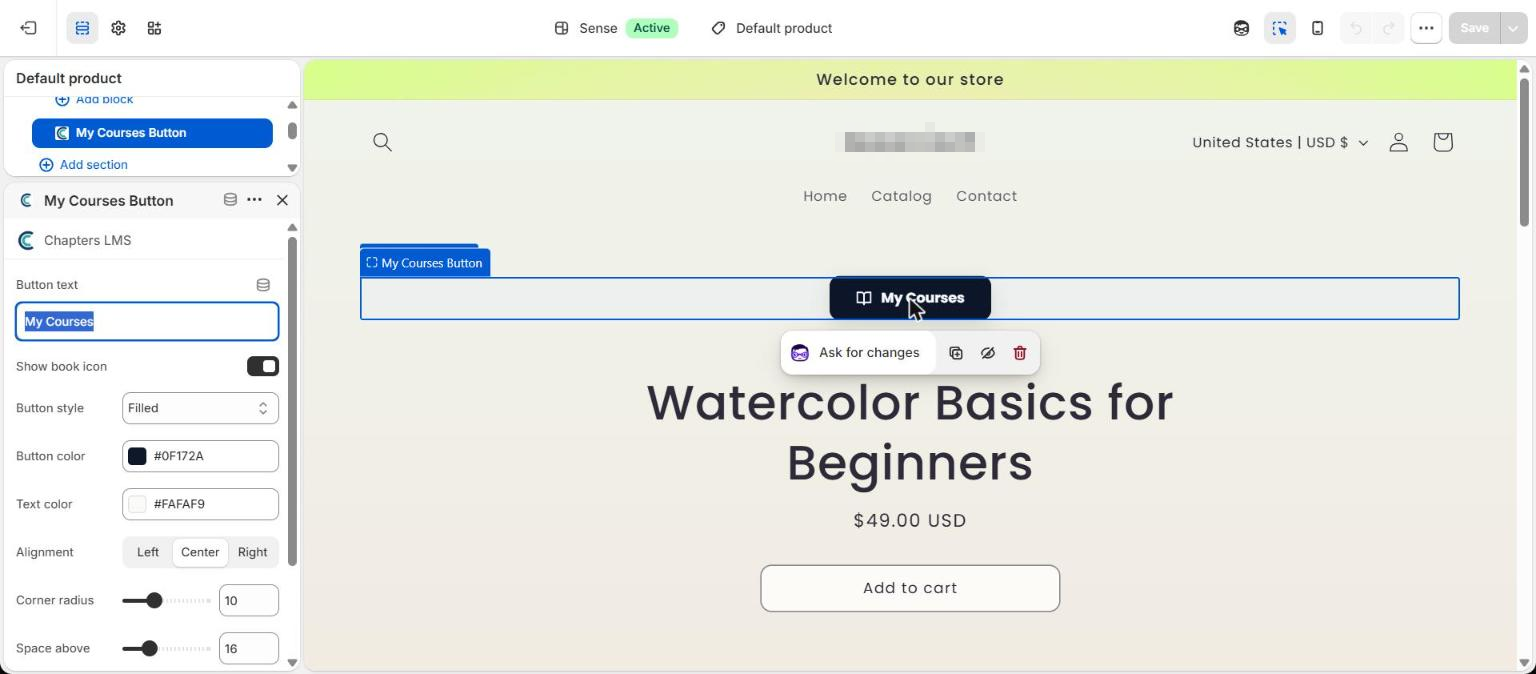
Open the theme editor (Online Store → Themes → Customize). In the Header group press Add block → Apps → My Courses Button. Pick the text, style, colours and alignment, then Save. The button opens the student portal; visitors who aren't signed in are asked to sign in first.
Step 2: Add the Course Access Card to your product page
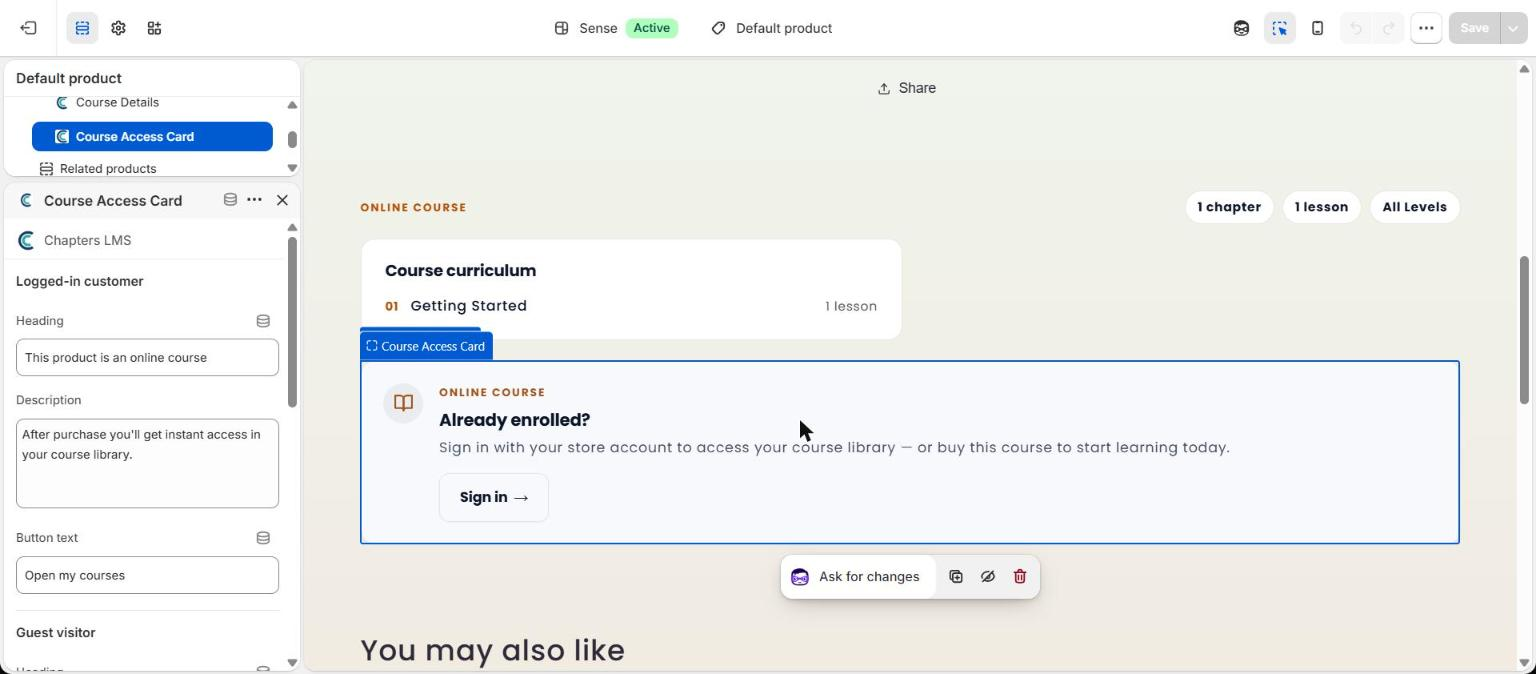
Switch the editor to Products → Default product and add Course Access Card from the Apps tab, just below the buy box. Guests see “Already enrolled? Sign in”. A signed-in student who owns the course sees You're enrolled with an Open my courses button instead of a second buy button.
Step 3: Turn on My Learning in customer accounts
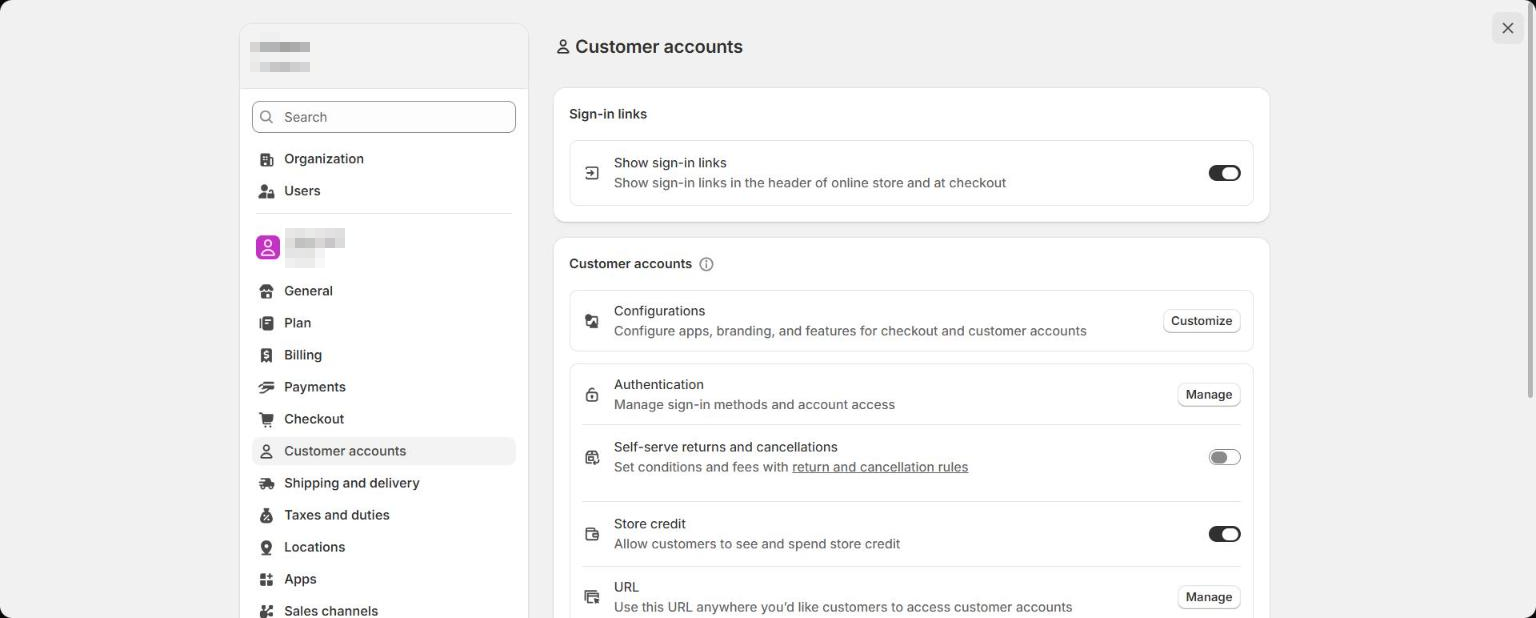
Go to Settings → Customer accounts. Make sure the modern accounts are on, then press Customize. In the editor's page selector choose My Learning under Apps, and accept when it offers to add the page to the account menu. Save.
From then on, the account area a customer already uses for orders has a My Learning page: enrolled courses with progress, a “continue where you left off” card, pending quizzes and upcoming live classes. Inside the editor it previews with a placeholder customer, so it looks empty there; sign in to your storefront to see it for real.
Which one do students actually use?
All three lead to the same place, the student portal at /apps/courses on your domain. The header button is what most students click. The access card catches people who come back to the product page from a bookmark or an old email. My Learning is for the ones who go to their account first, the way they would for an order. Set up all three; it's five minutes, and you'll never write a “how do I log in” reply again.
If something's not right
The button says sign in, but the student has an account+
They're signing in with a different email than the one on the order. Ask which email they used at checkout; they can also claim the course by signing in with the order email once.
My Learning doesn't appear in the page selector+
You're on legacy customer accounts. Switch to the modern accounts in Settings → Customer accounts, then reopen the editor.
Can I rename the button?+
Yes: Button text in the block settings. “My Learning”, “Student login” and “Classroom” are common choices.
Do guests who bought without an account lose access?+
No. They sign in (or create an account) with the email they used at checkout and the course is waiting for them.
Next
Now that students can find their way back, make the courses worth returning to: release lessons on a schedule or add a quiz. Stuck? Email chapters@pixipace.com and I'll look at your store.