Tutorial · 4 steps · about 10 minutes
Sell courses in your customer's currency
By Gill · builder of Chapters LMS · Updated September 2026
A student in Mumbai shouldn't have to do maths on a Canadian price. Shopify Markets converts prices for you, and every Chapters surface (the catalog grid, the course page, the buy bar, checkout) shows the same converted price. There is nothing to switch on inside Chapters; this whole tutorial happens in Shopify.
What you need
- Shopify Payments, which is what powers automatic currency conversion. Other gateways can still sell one currency per market.
- An idea of where your students are. Two or three countries is plenty to start.
Step 1: Open Markets
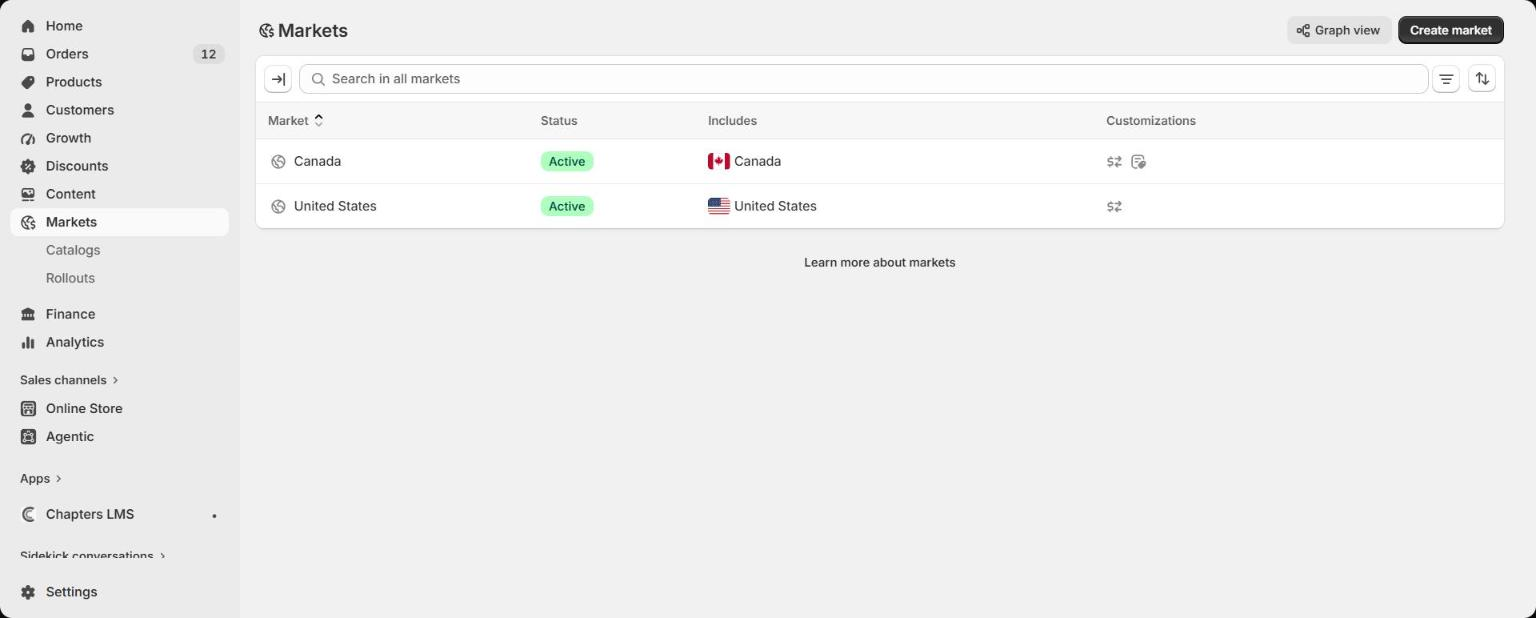
In Shopify admin open Markets in the sidebar (or Settings → Markets). Your home country is already a market. Press Create market, name it after the region, and add the countries it covers.
Step 2: Set the market's currency
Open the market. Under Customized, the Currency row decides what visitors from those countries see: pick their local currency for automatic conversion, or leave it on your store currency if you'd rather keep one price everywhere.
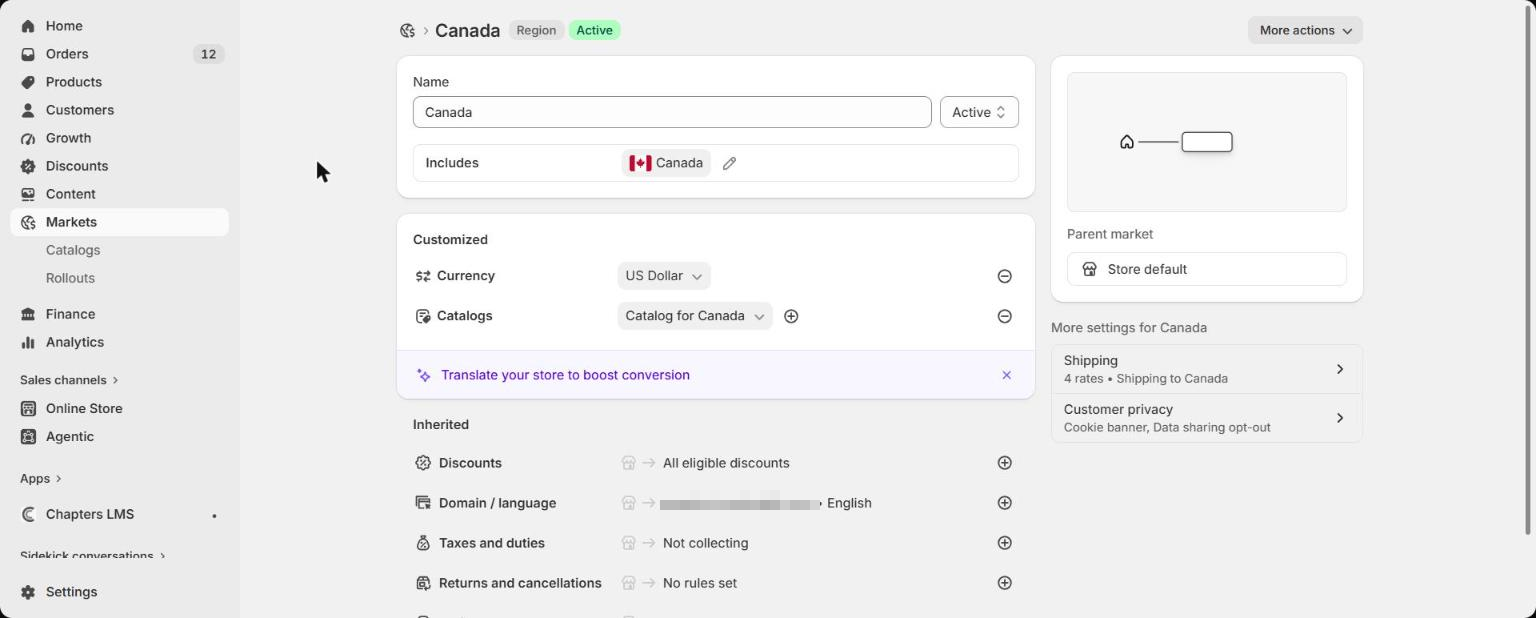
Want a round number instead of a converted one? Add a catalog for the market and set the course's price there. Chapters shows whatever Shopify decides.
Step 3: Show the country selector in your theme
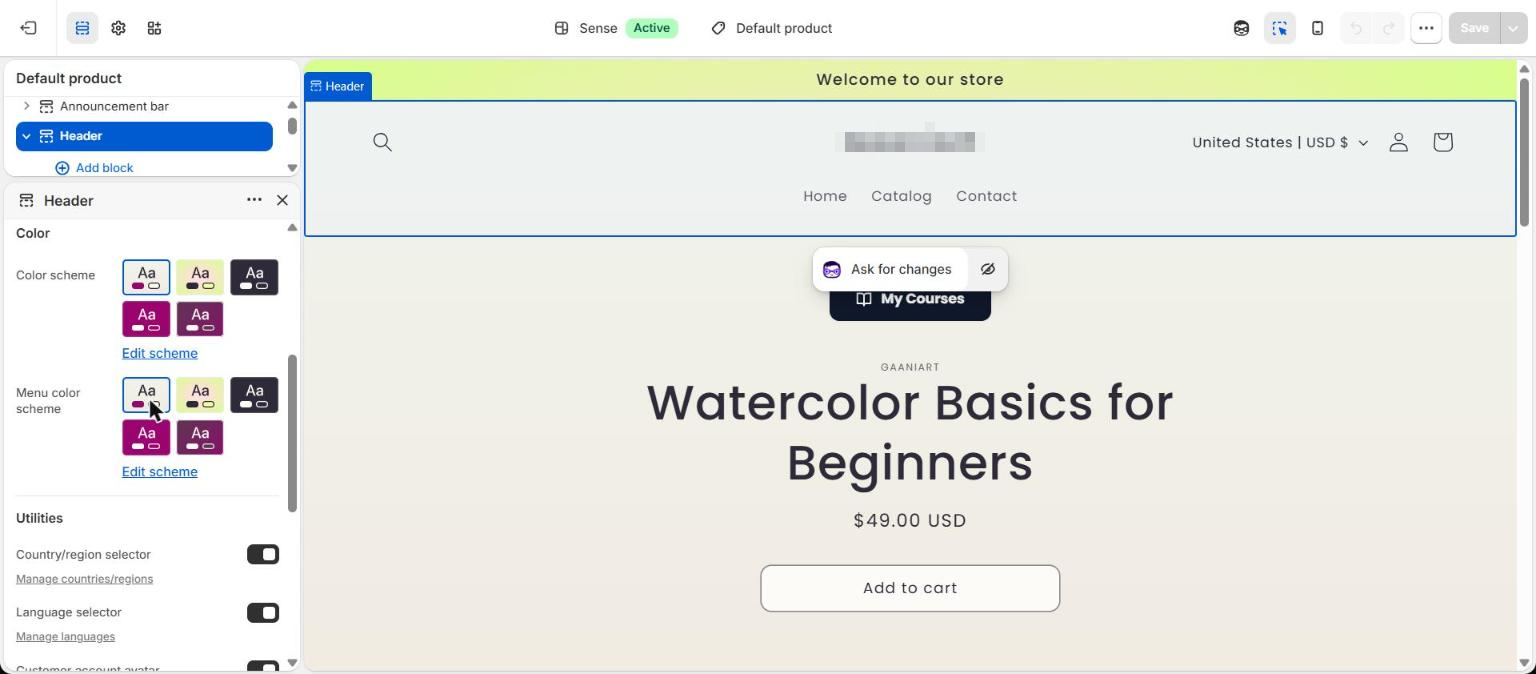
Open the theme editor, click the Header section and find Country/region selector under Utilities. Turn it on and save. Most themes offer the same toggle for the footer. The selector only appears once you have more than one market, so don't worry if it's invisible on a single-country store.

Step 4: Check the storefront
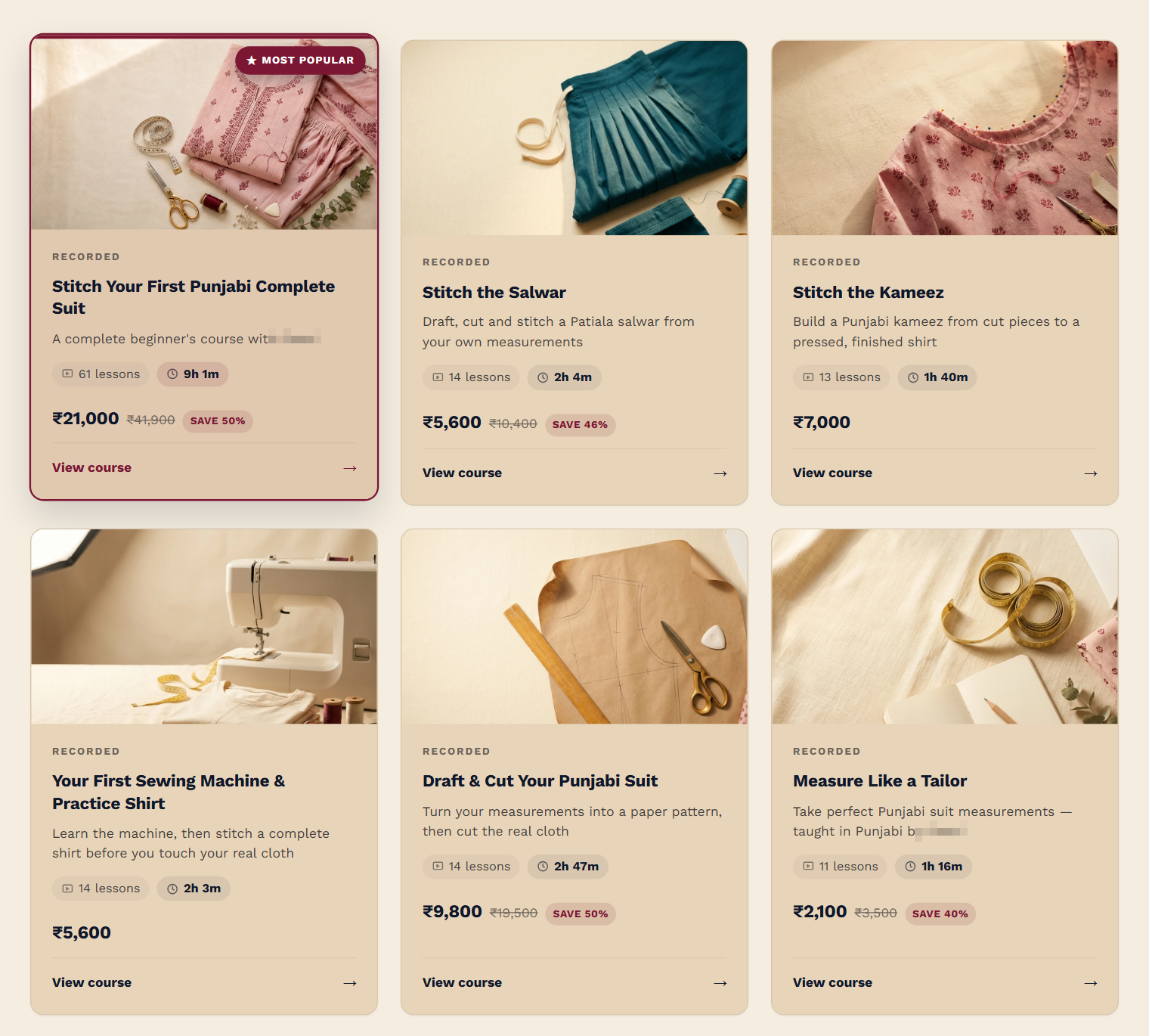
Open your store, switch the selector to another country and look at the course grid and a course page. Prices, compare-at prices and the Save badge all follow, and checkout charges the amount the student saw.
What Chapters does on its own
- Catalog cards ask Shopify for each course's price in the visitor's currency, so the grid never shows a stale number.
- The course page and buy bar in the student portal do the same, including compare-at prices and savings.
- Checkout and receipts are plain Shopify, so the student pays exactly what they saw and you're paid in your store currency, less Shopify's conversion fee.
- Your Chapters admin keeps showing prices and revenue in your store currency, the way Shopify's own reports do.
If something's not right
The selector doesn't appear+
It needs at least two markets, and the theme toggle in Step 3. If both are set, clear your browser cache; some themes only show it on the second page load.
I still see my own currency+
You're browsing from your home country, so Shopify shows your home market. Switch with the selector in your header or footer; that's exactly what a visitor abroad sees after Shopify picks their market for them.
Can I set my own price per country?+
Yes. Markets → open the market → Catalogs. Fixed prices there override the conversion, and Chapters shows them.
Exam and certificate prices+
Standalone exam and paid-certificate buttons inside the portal currently show your store currency. Checkout still charges the converted amount; a fix that localizes those two buttons is on the roadmap.
Next
Now that pricing is local, make it visible: put the course catalog on your storefront if you haven't yet. Stuck? Email chapters@pixipace.com and I'll look at your store.